My Convergence 2013 Summary

Last week my project scoping document proved to be very popular so I’m going to add more articles like this in the future. This week however, I decided to summarise what I felt were the key points from this years Convergence 2013. I will publish the previously planned article (SMS Messages and SMS replies with CRM Online) next week. With all the information coming out I felt it would be more helpful to round off the conference and include some of the screenshots from the upcoming release “Orion”.

For me the key points from Convergence 2013 were:

  1. Some fantastic customer stories were told. Find more at this great case study resource from the Microsoft website here.
  2. The Marketing Pilot Acquisition Announcement
  3. The Netbreeze Acquisition. Announcement
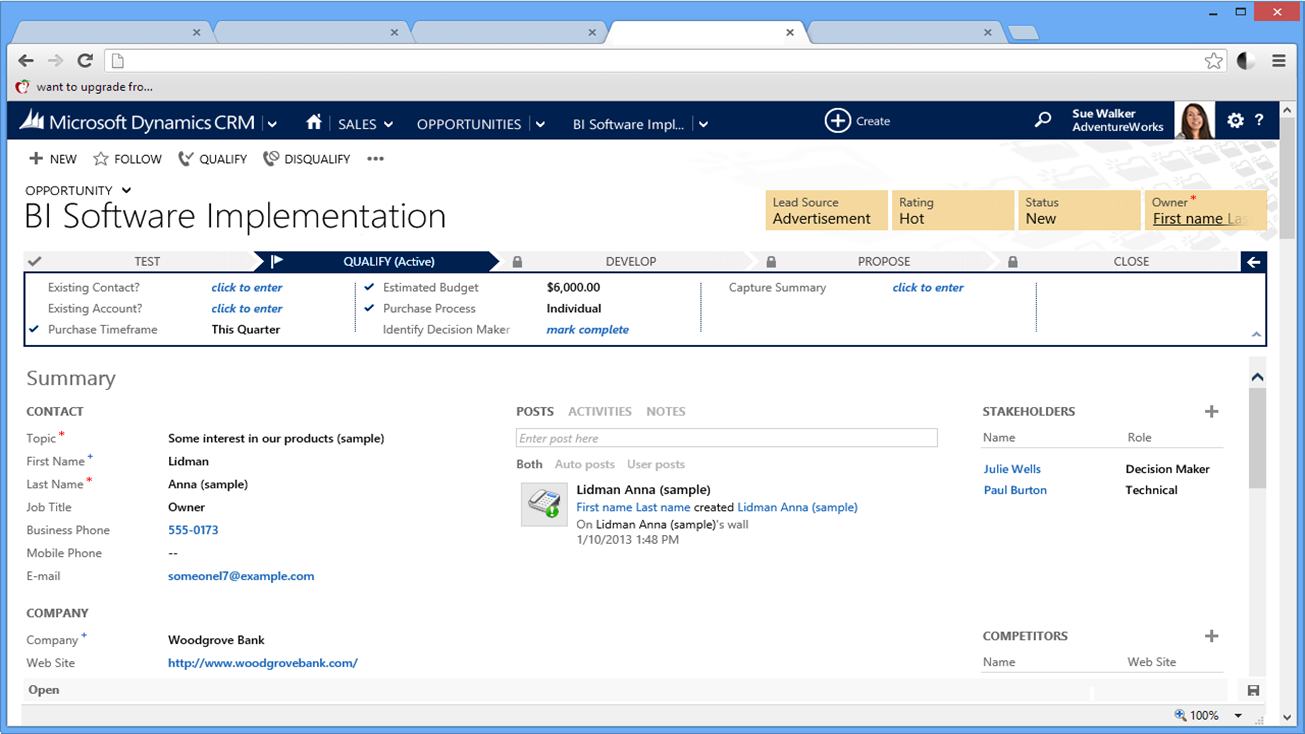
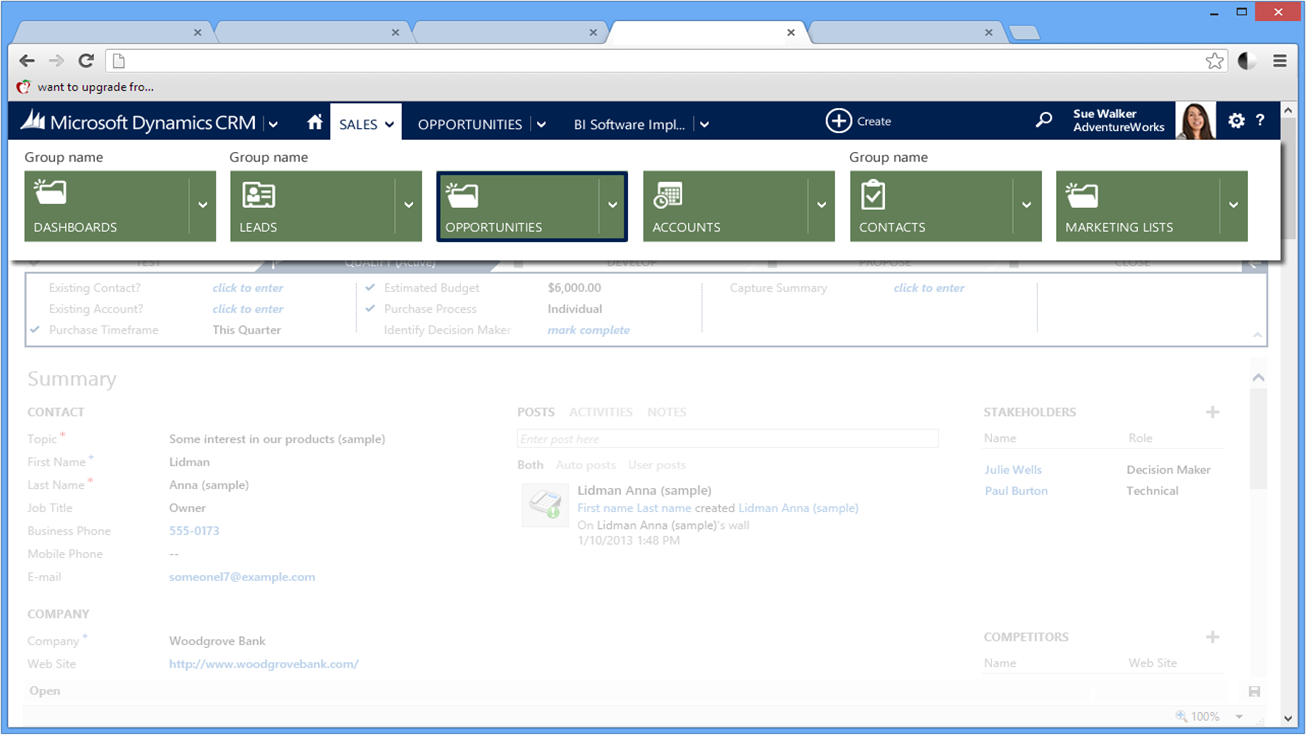
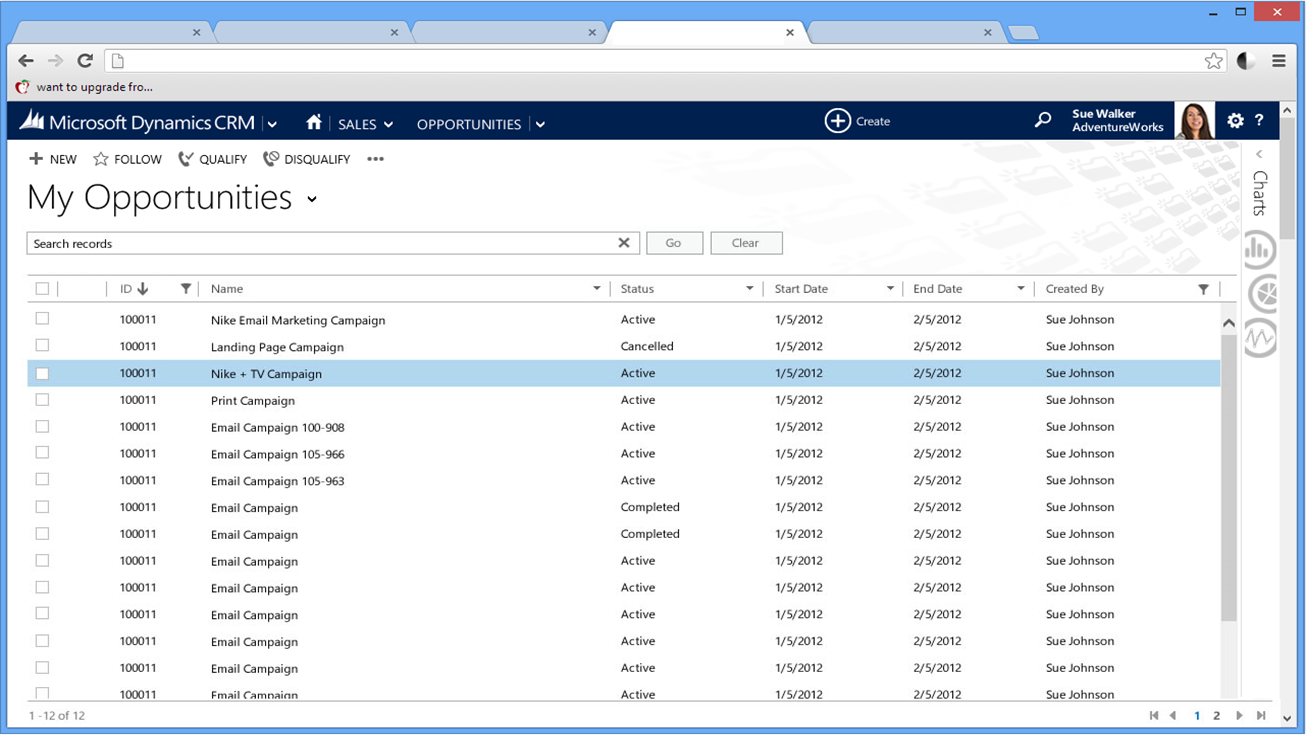
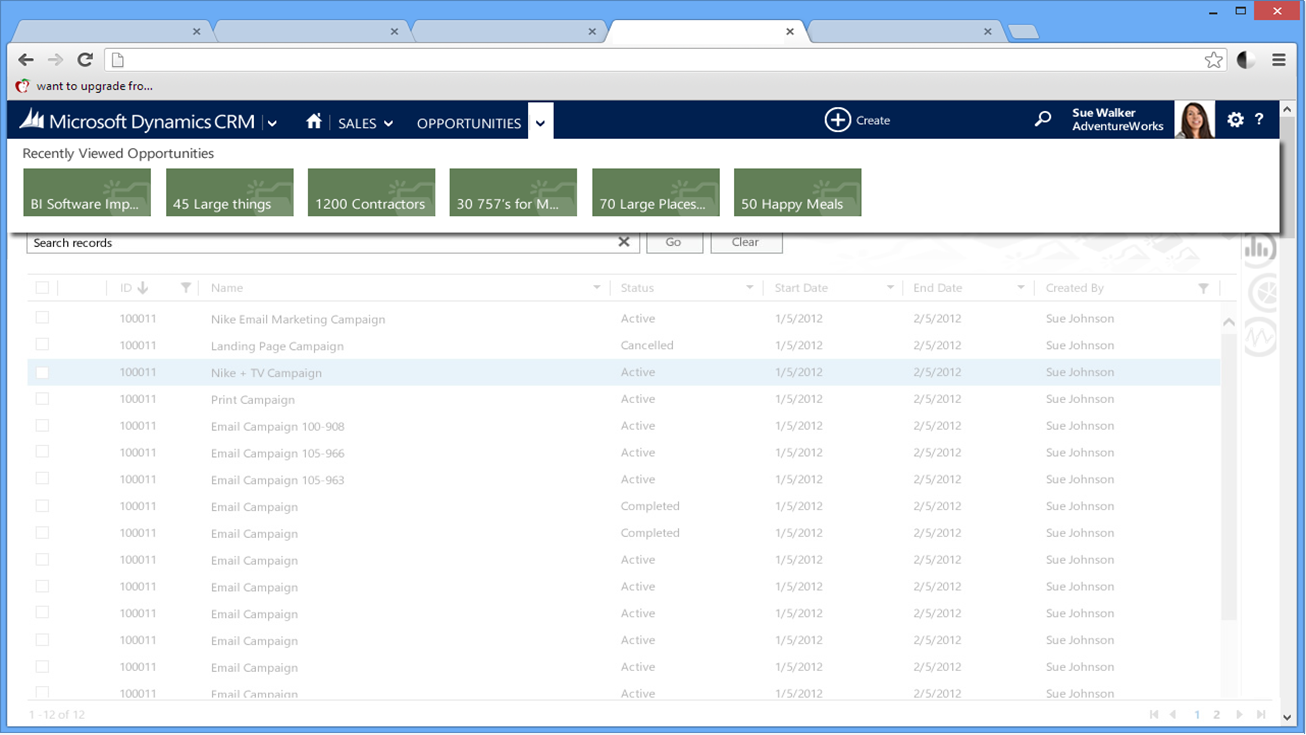
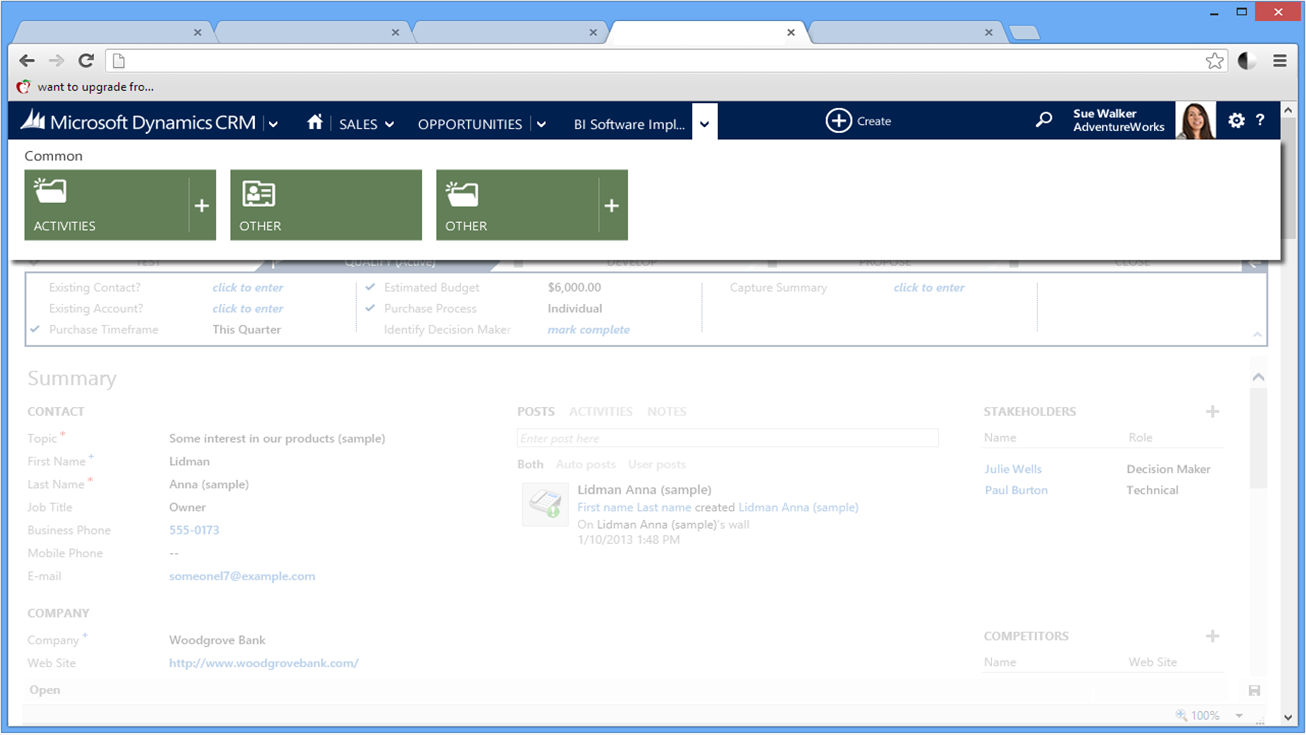
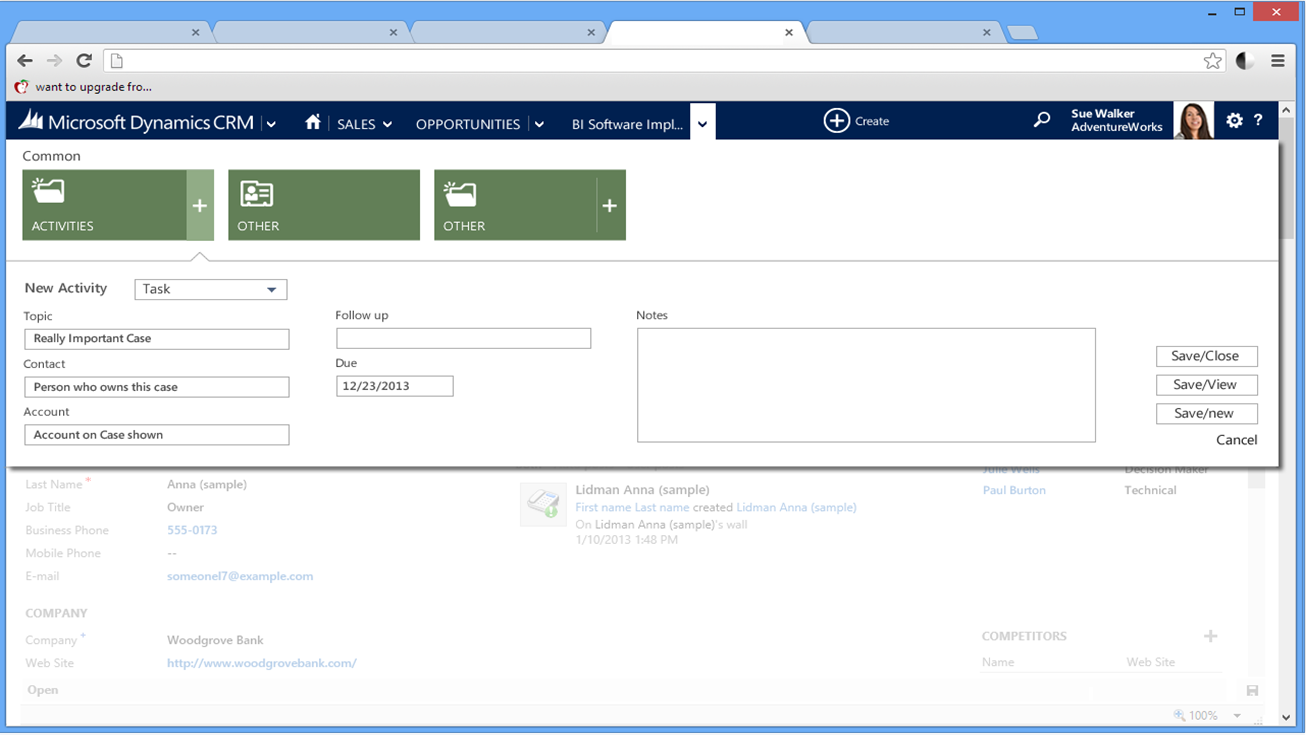
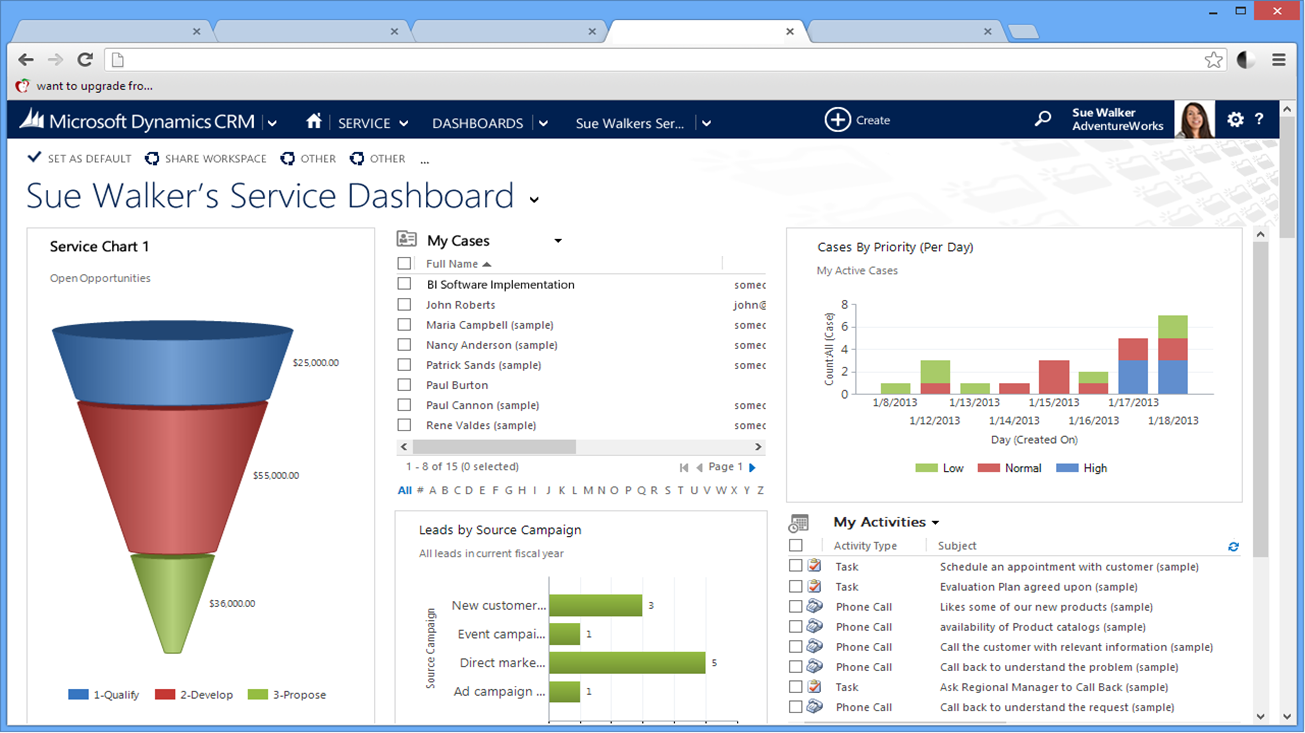
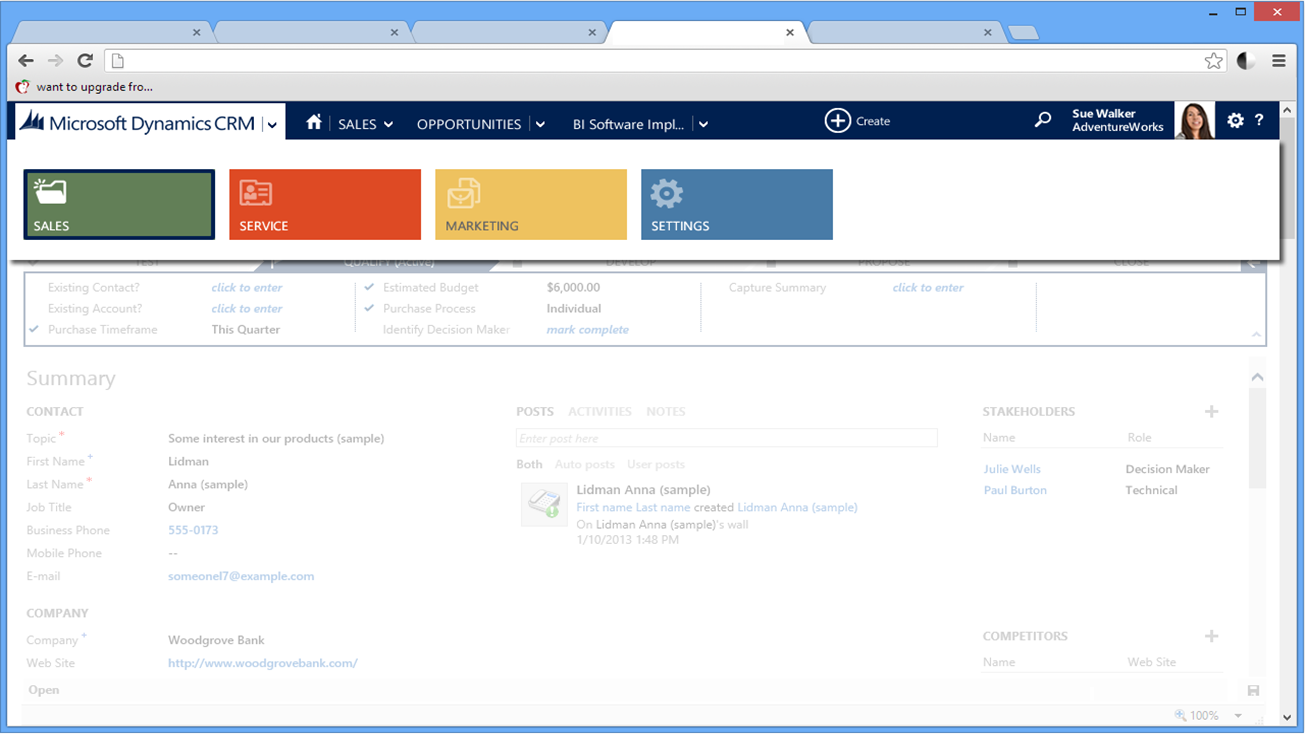
  4. New features with Orion and especially the new User Interface (a continuation of the Polaris UI). I have included some hi resolution screenshots below
  5. The new mobile experiences available across devices

You can watch  a lot of the sessions from Convergence 2013 online, all you need to do is register here. I particular enjoyed the following:

  1. Microsoft Dynamics CRM: The New Era in CRM. Link to video. Good overview of direction and introduction/demo of new UI, Marketing Pilot and Netbreeze
  2. Microsoft Dynamics CRM: Product Recap & Roadmap Primer. Link to video. More detail of the roadmap, including mobile
  3. Microsoft Dynamics CRM: Reimagining the User Experience. Link to video. Great insight into the UX design process, and why we do what we do.
  4. Advanced Analytics for Microsoft Dynamics CRM. Link to video. Great analytics example. Power View, PowerPivot, Office Apps, Very cool.
  5. Microsoft Dynamics CRM for Financial Services: Winning & Retaining Customers Link to video. My interest area.

Rather that write yet another article I am going to point you to two excellent summaries:

  1. Jukka Niiranen has written a great article here. He also wrote a great recap of eXtreme CRM in Rome a few months ago. You can find that here.
  2. Sonoma Partners have also written a  good recap here.

orion1

orion2  orion4

orion5

orion6

orion7

orion8

orion9

This posting is provided “AS IS” with no warranties, and confers no rights.

Next time on Mark Margolis’s Blog: SMS Messages and SMS replies with CRM Online

A Sample CRM Project Scoping / Initiation Document

Over the years I have found that the biggest challenge in any CRM project is not the technology challenge but the people; the human component is the single most important aspect of a CRM project.

Project success is often based upon whether an implementation was delivered on time, a project should only been seen as a success if it meets the objectives of the business and the needs of the users. I promise you a project delivered a few weeks late that delights users will be a far greater success than a project delivered on time that isn’t used.

It is critical to involve the business stakeholders and the users from the outset of the project, it is also important to manage their expectations and make sure that as a team (internal and external) we are all working towards the same goal. Creating an understating between the project team (or implementation partner) and the business users will give you a far greater chance of delivering a successful project. One that is not only delivered on time but one and empowers the users and drives the business forward. A project scoping or project initiation document is one of my main tools for helping me to crystallise this understanding at the very outset of a project.

My primary aim when I do a project scoping document is to ascertain:

  1. What are the objectives of the project from my perspective as someone who will be responsible for delivery?
  2. What are the objectives of the project from the perspective of the customer who will be responsible for using and funding the system?
  3. What is the basis of the engagement and how we will we work together to achieve the above objectives?

I always try to insist on agile projects, my firm belief is that large, big bang projects are extremely difficult to get right; I will cover agile delivery from the perspective of a CRM project in another post. No matter the methodology it is still important (in my opinion) to put together a project scoping document that forms the foundation of the understanding for the project.

The following is an example of a project scoping document, it’s not appropriate for all types of project but I hope you find it useful. When I was running projects I would often take a blank version of a document such as this with me whenever I met a client for the first time; it helps you focus the discussion and make sure you cover the most important points. As the early stages of the project progressed I would continue to add to the document with the objective of having it agreed with the client the earliest opportunity. It serves as our point of reference and the basis of an understanding between us.

The Project Scoping document could have the following sections:

  1. Project Background
  2. Project Commercials
  3. Project Methodology & Control
  4. Project Team & Contacts
  5. Project Scope
  6. Future Scope
  7. Out of Scope

Project Background

Provide a description of the business, the nature of the business, organisation chart and who their customer are. Briefly describe reasons for change and business benefits that are expected:

  • Expected impact to the business
  • Expected impact to the customer
  • Expected return on investment

It is worth understanding previous projects and their reasons for success or failure.

Assumptions

Descrive or provide a list of high level project or business level assumptions that have been made.

Project Commercials

This should outline the commercial basis of the project. Is the project billable? If it is billable, how with this be billed (fixed price, time and materials, capped etc).

What does the project include?

  • Software Installation?
  • Licences?
  • Training?
  • Project Management?
  • Configuration?
  • Development?
  • Testing?
  • User Acceptance Testing?
  • Go Live Rollout?
  • Go Live Support?
  • Ongoing Maintenance?

Event at the outset of a project I believe it is important to set some expectation of possible costs and time scales, this helps the business prioritise what is important. Depending on what is known and what the project risks are, I try to give a range in terms of timescales as well as actual costs. It is very helpful if you can give the business some indicators as to what can influence the cost and timescales such as:

  • Is there a system being replaced
  • Level of data migration required
  • Level of customization required
  • Level of availability of client personnel
  • Business / user expectation

Project Methodology and Control

It is very important that a methodology for implementation and project control is agreed. Whether a project follows an agile or waterfall process you need to define this upfront, describe exactly what this means and what the level of “project ceremony” will be and what the expectation of the project and business uses team will be.

My advice for any project, particularly during early stages, is to maintain absolute focus on features that are easily perceived as useful and benefits that are highly visible. Address the most challenging aspects of the project first, prioritise features and items that are architecturally significant as well as those that meet business objectives.

A good methodology with the appropriate project and control should:

  • Allow the project team to work at maximum efficiency with the business requirement top of mind
  • Allow the business users full transparency into the project with the ability to influence the deliverable (under strict project guidance)
  • Ensure a consistent level of delivery, work and service across the team
  • Provide the ability to learn from previous projects, implement best practice and build upon that learning
  • Ensure information is shared and that there are not unreasonable expectations placed on individuals

A good project also needs good tools (a topic for another post). I would categorise these tools into the following:

  • Collaboration Tools
  • Time Tracking Tools
  • Project Tracking Tools:
    • Feature Requests Capture
    • Bugs and Incident Capture
    • Risks & Issues Capture
  • Project control meeting and updates

I would advise a single point of contact for all matters related to projects status and control; Project Manager or Product owner depending on your preferred terminology.

Additionally I would advise a single point of contact that represents the business and a single point of contact that represents the delivery team. Be careful, do not mistake the single point of contact as your only point of contact to the business. We want to involve the wider project team with the wider business users and stakeholders, it is critical to remove the gap between technology and business. The purpose of a single point of contact is a person who is responsible for day to day communication and ensuring that the right people are involved at appropriate times.

Status reports and meeting should be agreed, these can be:

  • Daily / weekly / monthly meeting or calls as appropriate
  • Shared workspace for project updates
  • Distribution list and email notification for weekly project updates

Unfortunately emails seems to still be the preferred method of communication, but you really can’t rely on anyone reading them. It really isn’t good enough to say “well it was in an email I sent on xyz”. Try to limit emails usage to confirm something you agreed or discussed. You have to find ways to get your message heard and that means multiple channels

A typical weekly email update might be something like:

  • Project Summary & Commentary since last update
  • Work done since last update period
  • Work to be done this period
  • Blockers / issues that needs addressing

Project Team and Contacts

Agree who is a member of the team and try to set expectation of how much time might be needed from them or at least how long you expect questions should be answered in.

  • Project Team
  • Delivery Team
  • Support Team
  • Infrastructure Team
  • Business Sponsor
  • Key Stakeholders

Project Scope

Try to reach an agreement on broad project scope and success criteria as quickly as possible. Try to achieve a project scope that can be delivered as early as possible but make sure that it still delivers value to the business or users. I learnt a lot in my time as a product manager about Minimal Viable Product (MVP). As I said before maintain absolute focus on features that are easily perceived as useful and benefits that are highly visible. I recommend further reading in this area. See my earlier article on recommended books here.

As soon as a new project is underway meet with the key stakeholders and identify the primary success criteria for the implementation and how this will be measured. Understand the reasons they are implementing a solution, for example are they replacing an incumbent system and if so why.

Project Requirements

Functional Requirements

Document at a very high level some of the major functional requirements of the system. Use Case titles with perhaps a brief explanation of the most important ones is enough at this stage.

It is likely that changes will need to be made to the out of the box system, therefore it is helpful during the early stages of the project to explain the differences between configuration, customisation and development tasks.

I typically define configuration tasks as:

  • Configuring system settings such as date formats, currency etc
  • Setting up rules for email tracking
  • Creating business units and teams for permissions and security
  • Installing clients and configuring clients settings as required
  • Creating personal and/or system views

I typically define customisations tasks as:

  • Creation of new attributes
  • Changing attributes labels and types
  • Creation of new forms, tabs, views
  • Creation of dashboards
  • Creation of business process rules (workflow)

I typically define development tasks as:

  • Integration with external systems
  • Creation of new functionality
  • Enhancements to existing functionality

The early days of a project are a very exciting and creative time, even if all the suggested functionality cannot be delivered for day one, the ideas of the project team should be captured and can be phased in at a later date.

In line with the agile iterative process the aim is to deliver incremental functionality on regular basis. It is better to demonstrate functionality throughout the development process to ensure that the features are in line with business expectations.

Reporting Requirements

Describe at a high level any reports or dashboards that need to be produced. This often feeds back into the data that needs to be captured and therefore influences the data model. Understanding the reporting requirement will also help focus on capturing only the information that is absolutely necessary, we want to avoid turning our business users into data entry personnel. Try to understand the reason behind the report and ascertain if in realty it gives any insight into the business.

Integration Requirements

Identify what integrations are necessary and if these integrations are views onto other data (“iframes”) or if the data needs to reside in the CRM system. Try to keep as much of the data outside of the CRM system as without true integration this vastly simplifies the project. We want to avoid users having to open multiple systems (this can be done using iframes) but we also don’t want to turn the CRM system into a data warehouse or a duplicate of another back office system.

Consider questions such as

  • Does the data need to be updated by the user?
  • Is there data that would be useful in reports, workflow, dashboards, devices?
  • One way or two way integration?
  • Batch or real-time integration?
  • Frequency of integration?
  • What will be the golden source?
  • What happens if data or system is unavailable?

Data Migration

Assign ownership of the data migration process. This individual needs to understand the data, have the power to make decisions and have the capacity time wise to find answers to questions from the project team. Taking a pragmatic approach to data migration and understanding the challenges (not trying to achieve absolute perfection on every element) will have a vast impact on the cost and the success of the project.

Describe the data migration required for the project and list the various data sources (if any). Be clear about the following:

  • Number of data sources (specifically the number of different schemas)
  • Complexity of the mapping and business logic to be applied
  • Quality of the data
  • Data cleansing requirements
  • Volume of data to be migrated
  • If the data will be imported manually using the Data Import Wizard or though other data tools or the API
  • Performance and speed of the source system (Microsoft CRM Online will quite happily create 400 records per second, but if the source system is slow and the performance cannot be guaranteed you need to factor this in). Describe your expectations of the environment and permissions (if any) that will be needed.

Data Migration is probably the riskiest part of any project and the most difficult to estimate. I would advise (for quick start projects or pilot projects) fixing the time of data migration and just attempting to do as much as possible. An agile process is perfect for this. Iterate, iterate, iterate:

  • Define Migration Specification
  • Sprint / Cycle One
    • Cycle with basic data
    • Review finding and plan next migration
  • Sprint / Cycle Two
    • Cycle with additional data
    • Review finding and plan next migration
  • Sprint / Cycle Three
    • Cycle with additional data
    • Review finding and plan next migration
  • And so on… 🙂

Non Functional Requirements

Detail any non functional requirements. These requirements can be anything from specific compliance constraints to disaster recovery and performance. You will need to carefully consider who to ascertain the requirements from as it is likely to be a mix of business and IT stakeholders. Typical non functional requirements are:

  • Backup Requirements
  • Performance Requirements and Expectations
  • Disaster Recovery
  • Extensibility and Maintainability
  • Security

Training

Describe the training that will be provided. If the training will be to end users or will you use a train the trainer approach? Include training for the project team here not just the training prior to go live. Many projects are delayed because the UAT team have not been sufficient involved or trained. Train early, train often and engage the users from the outset with relevant sessions. Avoid long training sessions and try to split the training into role/goal based courses.

I like to do a simple one hour introductory session followed by two or three follow up sessions a week or so later and then a refresher near Go Live.

Describe the requirements:

  • End user training
  • Train the trainer
  • On site or remote training
  • Facilities required (room, projector, screens etc)
  • Number and types of sessions
  • Level of tailoring

User Acceptance Testing (UAT)

User Acceptance Testing should be done throughout the implementation lifecycle and not just at the end. If you do it at the end you’ll discover problems to late. Developing the most difficult aspects first will give you more time to resolve or provide workarounds. Make sure to involve the right business users in the UAT process.

Describe the UAT process that will be carried out and what the tools that will be used are going to be. Set expectations of response time and manage it like an SLA. Keep on top of scope creep! Like data migration this is often an area that can get out of control. So like data migration assign a single point of contact that has capacity and authority to make tough and timely decisions.

Go Live

This is all about planning; if the business has been involved throughout then there should be no surprises. A Go Live document should describe the team, logistics and steps required to put the project live:

  • Sign off commercials and agreement with all suppliers
  • Installation of any applicable licences
  • Installation and configuration of users
  • Final data migration
  • Training of remaining user base
  • Go Live support
  • Go Live plan
  • Rollback plan

Out of scope

As important as it is to know what is in scope, if you know something cannot be done within the costs and timeframe then speak now! Similarly this is a chance for the business to provide further focus for the project by eliminating items that are lower priority and that should not be considered.

As the project progresses, many new requirements are going to be discovered. Do not dismiss these because they are out of scope, instead capture them, evaluate them and make sure that are considered for future releases. Getting additional requirements is a good sign that the users are engaged, make them feel that their voice is heard, show them that their requirement are being captured.

Conclusion

I hope the above is useful, as I said in the introduction, this is not appropriate for all projects nor is it a comprehensive project initiation guide. I do hope however that I have been able to provide you with some help towards your next project.

This posting is provided “AS IS” with no warranties, and confers no rights.

Next time on Mark Margolis’s Blog: SMS Messages and SMS replies with CRM Online and My Convergence 2013 Summary
A Sample Microsoft CRM 2011 Demo Script

Last December we put together an event here in London, for that event I wrote a demo script which I thought I would share. I hope you find it useful and I’d love to hear any improvements that you have made. It is deliberately generic and I have structured it such that it covers:

  • Outlook Integration
  • Web Client
  • Mobile Client
  • Microsoft Tablet Experience
  • Partner Tablet Experiences
  • CTI and Telephony Integration
  • Social Intelligence & Feeds
  • SharePoint & Collaboration
  • Dashboards & Analytics

The demo takes approximately 25-45 minutes depending on the level of detail you go into.

This article is split into the following:

  1. Demo Setup
  2. Demo Script
  3. Demo Cheat Sheet

Demo Setup

For the purpose of this demo Chris Perry and Ben Burton work for an organisation called WoodGrove and they are working on an opportunity for a company called Northwind.

Create Office 365 Accounts:

  1. Set up Office365 / CRM Online / Lync / SharePoint for the main Demo account (will be used for the two protagonist Chris Perry and Ben Burton) – I highly recommend that you use Demo Builder.

 Create LinkedIn Accounts

  1. Link to you own or create dummy LinkedIn accounts (remember to change visibility of pictures and profile as low as possible – only connections) for Chris Perry and Ben Burton – check the terms of service for LinkedIn to make sure you are not breaking any rules!

Configure CRM Online Instance

  1. Power View: You can use the out of the box CRM instance for the demo, however if you want to use the Power View chart then you need to add a “number of days” field to the Opportunity entity. See related post.
  2. Power View: Create 4 companies, making sure the cities are: Wolverhampton, Derby, Stoke on Trent, Coventry (or as appropriate)
  3. Power View: Import the Opportunities as per the Power View Report. See related post.
  4. Configure the SharePoint and CRM integration and put the proposal document (any word document will do) in the root documents folder for Northwind Traders
  5. Download and Configure InsideView for Microsoft CRM. The trial licence should give you the ability to sync and import contacts, if you have trouble contact InsideView directly. Find a contact that you want to use and that is a real contact in InsideView and use this contact for “Contact XYZ”

 Configure Windows 7 Client machine for Chris Perry and Ben Burton

  1. Create a Windows 7 hyper V for Ben Burton and Chris Perry, Install and Configure CRM for Outlook.
  2. Install intelli-CTI (by Qgate) for MSCRM on the Hyper-V, then install the client and configure to point to the CRM instance above. Create Jim Wilson as a contact in CRM and give him a telephone number, enter this telephone number in the Virtual Simulator.
  3. If you want to show PowerView from the Hyper V (rather than your own physical machine) then you’ll need to install Excel 2013 on the hyper V. Excel 2013 will happily sit along office 2010 however make sure that you only install Excel 2013 by unchecking all the other installation options. Otherwise you might have problems.
  4. Download install and configure the Outlook Social Connector for LinkedIn

Install Mobile Apps on tablet

  1. Download the Sonoma App (EZ Opp) for W8 and configure to point to the Office 365 / CRM online instance
  2. Download Resco W8 app and configure to point to the Office 365 / CRM online instance
  3. You can also use the Power 8 app by Power objects which is very good
  4. Install the W8 Concept Demo (from roadmap)

Demo Script

Demo Introduction
 1. During today’s demo you are going to see a number of different experiences, from desktop, web access and mobile devices. With only one exception at the conclusion of the demo, everything we are going to show you is available today!.  2. Not only that but everything we are going to show you is running live, this is not smoke and mirrors this is a live demonstration using Office 365 and CRM Online!
 3. Today’s demo is a day in the life of Chris Perry and Ben Burton. Chris and Mark both work at Wood Grove Bank. Wood Grove Bank offers a variety of products and services to retail and commercial customers. Chris and Ben work in the Commercial lines division and specialise in Commercial insurance. Chris is the Sales Manager and spends his time between visiting key clients and working in the office. 4. Ben Burton works in the sales support and works almost exclusively from the office.
 5. The day will start with Chris at home. Chris will use his mobile device to find out the latest status of his opportunities before heading into the office. 6. In the meantime Ben is in the office nice and early and is already receiving calls from customers. Ben receives a call from Jim Wilson (head of procurement at Northwind, one of Wood grove’s key prospects)
 7. Chris has made it in the office and is ready to hit the ground running as he already knows exactly what he needs to do today. Chris sees that Ben has booked a follow up with Northwind and that a proposal needs to go out asap. 8. Chris and Ben collaborate in the proposal and get it out on time to Northwind for sign off.
9. Chris leaves the office to meet the customer and uses his mobile device to find directions and update his meeting notes. 10. Ben gets an urgent email from Chris who is about to walk into a senior management meeting following his customer visit. He really needs a report to take with him. Ben has 15 minutes to produce this report.
11. Chris finishes the senior management meeting and travels home. At home he uses this mobile device to contact another customer and update the opportunity using the W8 app.
Demo
 Chris Perry  Ben Burton
1. Chris is at home ready to travel into the office. He uses the Sonoma app to review the latest information on his opportunities before travelling into the office. With these new devices and experiences I am able to carry out work that traditionally I would need to wait until I got into the office.
2. I can see here that I have an opportunity “XYZ Opp” and I am going to move this this opportunity to “XYZ % Probability”. I can also drill into the opportunity and see related news, activities etc. I have all the information I need at my fingertips.
3. Whilst Chris is travelling into the office, I’m busy in the office talking to my prospects.
4. I can see right here on my first page “Activity feeds” that Chris has updated the probability of “XYZ Opp”.
5. As I have telephony integration enabled I can see I have an inbound call from “Jim Wilson”. Jim tells me that he has received the draft proposal and would like the final version sent to his manager “Contact XYZ” for approval.
6. Whilst I am writing my notes I notice that I do not have “Contact XYZ” in the system. Not to worry, using InsideView I can create the record right away in CRM. This is “Contact XYZ” record look how information was automatically published into the system for me.
7. I’m now ready to complete the proposal with Chris’s import and sent it to “Contact XYZ”.
8. I’ve now made it in the office and Outlook is where I tend to spend my day. Outlook is personalised to show me just the things I need. Outlook also learns the way I work.
9. I can see the follow that Ben has created for me so I am Ben to see if he needs help.
10. I open the document from the account record and start collaborating with Ben
11. While Chris is having fun in Outlook, I am going to be busy working on the proposal for “Contact XYZ” at Northwind.
12. I access the proposal that is stored SharePoint directly from the CRM record. The CRM record gives me all the features I expect and love from SharePoint (version control, check out, setting alerts etc).
13. I open the document and as I type I can see that others are also working on the document. I can see that Chis is working as I do. Using Lync I can engage in a conversation directly with Chris about the sections he wants to edit. The documents locks regions that Chris is editing, the document also highlights the sections that Chris has edited.
14. I open an email to send to Ben (look at how Outlook automatically displays his presence and social feed). Regarding shows me all the records that I use most frequent.
15. Look how I can attach sales literature directly from the email record!
16. Having sent the document to “Contact XYZ” at Northwind, Chris goes on the road to visit her. He uses the Resco Mobile app to find the offices and types his notes.
17. As I leave the meeting I get an email from the UK Sales director asking for a territory review. He wants to see all my opportunities by region and he also wants to know the profile of my opportunities over the last FY. I only have 15 minutes to do this! So I give Ben the good news! 18. Ben gets Chris email, I know he is nervous but I’m totally comfortable because I know how easy it is for me to do analytics in MSCRM.
19. Firstly I export Chris’s opportunities. Using PowerPivot look how I can plot his opps on a map! Look how I can set the size of the bubble to match the size of the opp.
20. That is not all, I now need to give Chris a FY review of all his opps. To save time I have precreated the export and watch as I configure the scatter chart to meet Chris requirements. I know have a good view of the last 12 months. But wait, what if I want to visualise how the opps have progressed, well if I set the actual end date to the play axis I can see exactly that!
21. Phew, that is exactly what I needed and the management team where pleased that I was in control of my pipeline!
22. It been a good day at work but I’m not done yet.
23. Everything you have been up until now is available now, You’ve already seen some mobile experiences from our partners. What I am about to show you are the sort of experiences that you will see from Microsoft over the coming months.
24. Run through W8 demo app.

Demo Cheat Sheet:

If I am ever doing a complex demo I like to keep a cheat sheet next to my laptop do I know exactly what I am doing. The cheat sheet below is for the scenario above.

  1. Open Sonoma App
  2. Drill into Northwind Opportunity and go back to Sonoma Start screen
  3. Make the Northwind Opportunity a bigger opp and a bigger percentage. Save and close
  4. Show Activity Feeds screen
  5. Simulate inbound call from Jim Wilson
  6. Answer the phone call from Jim and open the Northwind record from the CTI agent client
  7. Write notes on Northwind and hang up the call
  8. Show that the contact does not exist and sync the contact using InsideView
  9. Using the CTI agent schedule the follow up with Chris, set northwind as regarding, todays date
  10. Show Outlook and how the follow up in the outlook pane
  11. IM Ben to ask if he needs help on the proposal
  12. Open the Northwind record from regarding and open the proposal for editing
  13. Open the Proposal document and start selecting quick parts
  14. Collaborate and chat with Chris
  15. Save and send the document, save in drafts and thank Chris for his help
  16. Open the draft email, show linkedin, regarding, insert literature and send
  17. Open Resco App
  18. Show Follow up call
  19. Show email
  20. Show map
  21. Export data from CRM
  22. Create two pivot charts
  23. Open W8 concept app
  24. Do W8 concept app demo

This posting is provided “AS IS” with no warranties, and confers no rights.

Next Week: A Sample Project Scoping Document

Microsoft Dynamics CRM Licencing Simplified

I have to start with a warning:

Firstly:

The following is a guide only, it is intended to give you only a brief high level understanding of the different models and items you should consider.  I am not a licensing specialist. Please contact your licensing specialist for formal licensing information and I highly recommend that you read the documentation below (always make sure you have the latest version).

Secondly:

I tried to make this simple, I’m not convinced I have achieved this, I’d appreciate your feedback on how this can be improved.

Introduction

I have tried to copy the salient points from various licensing documents so that I have a quick reference for my licensing needs. I will try to keep this article and FAQ’s up to date (please feel free to submit questions). This article is largely a summary of information from the following three documents:

  1. The CRM Licensing guide explains the details around licensing:
  2. The Product Usage Rights has more information about the Server/Cal model usage rights
  3. The Microsoft license Advisor tool can provide you with guideline pricing

For the purpose of this article I am going to split Microsoft licensing into two aspects:

  1. The program under which a licence in is purchased (this dictates the price that is paid).
  • For Customers these programs are:
      • Small Businesses (Fewer than 250 licenses):
        • Open License
        • Open Value
        • Open Subscription
        • Microsoft Online Services
    • Midsize and Large Businesses (250 or more licenses)
      • Enterprise Agreement
      • Enterprise Subscription Agreement
      • Select Plus
    • There are special programs for customers in the following industries:
      • Government
      • Health
      • Education
      • Charity
  • For Partners these programs are:
      • Independent Software Vendor (ISV)
      • Services Provider License Agreement
      • Microsoft Partner Network

2. The type of licence that is purchased (this dictates how the licence can be used)

  • Microsoft Dynamics CRM Sever (On Premise):
    • Microsoft Dynamics CRM 2011 CAL (User & Device)
    • Microsoft Dynamics CRM 2011 Employee Self Service CAL (User & Device)
    • Microsoft Dynamics CRM 2011 External Connector
    • Microsoft Dynamics CRM 2011 Full Use Additive CAL (User & Device)
    • Microsoft Dynamics CRM 2011 Limited CAL (Users & Device)
    • Microsoft Dynamics CRM 2011 Limited Use Additive CAL (User & Device)
    • Microsoft Dynamics CRM Server 2011
  • Microsoft Dynamics CRM Online:
    • Dynamics CRM Online Per User
    • Dynamics CRM Online Extra Storage
    • Dynamics CRM Online for Step Up (aka USL for SA)
  • ISV, SPLA, MPN
    • These licence models are beyond the scope of this article as they are not intended for customers.

CRM 2011 On Premise

Employee Self Service CAL – The Employee Self Service (ESS) CAL provides a user with limited API access and limited read-write access to “Microsoft Dynamics CRM functionality” through any application/graphical user interface (GUI), other than the Microsoft Dynamics CRM client.

Limited CAL – The Limited CAL provides a user with full read access and limited write access to “Microsoft Dynamics CRM functionality”. Users may view or query CRM data.

Full CAL – The CAL provides a user with full read-write access to all capabilities within Microsoft Dynamics CRM 2011 and consists of Employee Self Service CAL, the Limited Use Additive CAL, and the Full Use additive CAL, combined to provide full “Microsoft Dynamics CRM functionality”.

Limited Use Additive CAL – The Limited Use Additive CAL provides a user with full read-access and limited write-access functionality using any client, and may only be purchased to supplement an ESS CAL, for Users who may later require full read and limited write access.

Full Use Additive CAL – The Full Use Additive CAL provides a user with full write-access functionality, and may only be purchased to supplement a Limited CAL, for Users who may later require full read and write access.

Administrative Users – Microsoft Dynamics CRM Server 2011 allows for up to two separate devices or users to access instances of the server software only to administer those instances, which do not consume CALs. Microsoft Dynamics CRM Workgroup Server 2011 allows for separate management or administrative users of the server software, which do not consume any of the 5 users permitted with Workgroup.

External Connector –  The Microsoft Dynamics CRM 2011 External Connector enables customers to extend Microsoft Dynamics CRM to their external users such as customers, partners, suppliers, and end users who access a copy of the server software (for which a license was acquired), through any application/graphical user interface (GUI), other than the Microsoft Dynamics CRM client. “External Users” are users who are not either (i) your or your affiliates’ employees, or (ii) your or your affiliates’ onsite contractors or agents, External users also does not include hosted-software service users, such as those already licensing via the Microsoft Service Provider License (SPLA). An External Connector must be purchased for each server that permits access to Dynamics CRM 2011 server software by external users. External users should not be using the Microsoft Dynamics CRM 2011 applications & GUIs directly.

For full details on exactly what you can and cannot do please refer to page 12 of the CRM Licensing guide.

However below is a brief summary for CRM On Premise:

Use Right ESS /CAL Limited CAL Full CAL External Connector
Create records via API Yes Yes Yes Yes
Update records via API Yes Yes Yes Yes
Append records via API Yes Yes Yes Yes
Delete records via API No Yes – if owned by user Yes Yes – if owned by user
Assign records via API No Yes – if owned by user Yes Yes – if owned by user
Share records via API No Yes – if owned by user Yes Yes – if owned by user
Create records via CRM Client  No  Yes  Yes  No
Update records via CRM Client  No  Yes  Yes  No
Append records via CRM Client  No  Yes  Yes  No
Delete records via CRM Client  No  Yes – if owned by user  Yes  No
Assign records via CRM Client  No  Yes – if owned by user  Yes  No
Share records via CRM Client  No  Yes – if owned by user  Yes  No

* There are some intricacies around custom Entities, Dashboards, Dialogs etc. Please refer to the CRM Licensing guide and Product Usage Rights for further information.

CRM Online

User Subscription License – The User Subscription License (USL) grants users non-perpetual rights (with no buy-out rights) to the use of Microsoft Dynamics CRM Online service. The license includes access to the default Microsoft Dynamics CRM Online instance included in the subscription, and every Microsoft Dynamics CRM Online additional instance associated with the same subscription account.

Step-Up user subscription license – A Step-Up user subscription license (also referred to as USL for SA) allows customers who purchase or have previously purchased perpetual software licenses (Client Access Licenses and Software Assurance) to migrate to Microsoft Dynamics CRM Online. The license includes access to the default Microsoft Dynamics CRM Online instance included in the subscription, and every Microsoft Dynamics CRM Online additional instance associated with the same subscription account.

Additional Instance add-on licenses – Additional Instance add-on licenses provide flexibility for a customer to add one or more production-ready Microsoft Dynamics CRM Online instances to an existing Microsoft Dynamics CRM Online subscription. Each additional instance add-on license includes 1 unit of Microsoft Dynamics CRM Online instance only. Additional Storage add-on licenses provides flexibility to increase the storage capacity associated with a Microsoft Dynamics CRM Online subscription. A Microsoft Dynamics CRM Online subscription

MSDN

I get so many questions about licences for development and test environments I thought it merited its own section. The ability to install development and test environments is covered by the MSDN subscription program.

The following is an excerpt from MSDN licensing:

MSDN subscriptions are licensed on a per-user basis. One person can use the software to design, develop, test, or demonstrate his or her programs on any number of devices. An MSDN subscription also allows the licensed user to evaluate the software and to simulate customer environments in order to diagnose issues related to his or her programs.

MSDN subscriptions are only offered per individual, there are no “team” subscriptions or sharing of subscription benefits.  You should select the right MSDN Subscription for each person on your software development team based on the software that person needs to use and the support benefits required. Remember that team members who install the software (such as IT Professionals who install software for a test lab) will also need an MSDN subscription.

Many MSDN subscribers use a computer for mixed use—both design, development, testing, and demonstration of your programs (the use allowed under the MSDN subscription license) and some other use.  Using the software in any other way, such as for doing email, playing games, or editing a document is another use and is not covered by the MSDN subscription license.  When this happens, the underlying operating system must also be licensed normally by purchasing a regular copy of Windows such as the one that came with a new OEM PC.

When software development projects are nearing completion, an MSDN subscription license also allows your end users to access the software to perform acceptance tests on your programs. With Visual Studio 2012, your end users can also provide feedback on your programs using the Feedback Client for TFS.

Need the full details?  Download the Visual Studio 2012 and MSDN licensing white paper

Frequently Asked Questions:

  1. Does an administrator user need a licence?
      • Microsoft Dynamics CRM Server 2011 allows for up to two separate devices or users to access instances of the server software only to administer those instances, which do not consume CALs.
  2. Do I need a licence if I have a custom or external application querying the CRM database?
      • Yes you will need a full call, ESS or external connector depending on your circumstances.
  3. Do I need an external connector for CRM Online?
      • No the External Connector is only applicable for on premise installations
  4. Can I have multiple instances for CRM Online?
      • Yes you can create multiple instanced for development and test and you pay a single fee per instance.
  5. Is there a Read Only license for CRM Online?
      • No, there is no read only or limited CAL. The administrator can configure the security roles to enforce read only rules.
  6. Is the CRM Sever licence per CPU or per server?
      • Per server that runs Microsoft Dynamics CRM 2011.
  7. Will I need to licence each server that has a CRM role installed?
      • Yes if you install CRM server roles across multiple servers (e.g. Async service, Sandbox Processing, etc) then each server will need to be licensed.
  8. What is the difference between Workgroup server and CRM Server?
      • Server: Multi Tennant and unlimited users
      • Workgroup: Maximum of 5 named User licenses and only 1 organisation
  9. Can an employee be licensed under External connector if they do not use a Microsoft CRM client?
      • No, External Users  are users who are not either (i) your or your affiliates’ employees, or (ii) your or your affiliates’ onsite contractors or agents
  10. Do I need software assurance?
      • You need software assurance if you want to receive future versions and upgrades for free. Customers with expired Software Assurance or Maintenance will need to purchase Microsoft Dynamics CRM 2011 under standard pricing programs, and license it in the same way as would a new customer.
  11. Do I need a licence for development, testing or UAT?
      • You will need MSDN licensing to cover development, testing and UAT
  12. Does the Microsoft CRM Server licensing include the underlying operating system and required software (SQL)?
      • No you will need licences for the operating system and related software such as SQL sever. Please refer to the related PUR for each product to ensure compliance
  13. Can I run an earlier version of the software?
      • Yes if you have the latest version of the software you can run earlier versions
  14. Do I need a licence for Disaster Recovery?
      • You need Software assurance for the following benefits. For each instance of eligible server software you run in a physical or virtual OSE on a licensed server, you may temporarily run a backup instance in a physical or virtual OSE on a server dedicated to disaster recovery. The license terms for the software and the following limitations apply to your use of software on a disaster recovery server
        • The server must be turned off except for (i) limited software self-testing and patch management, or (ii) disaster recovery
        • The server may not be in the same cluster as the production server
        • You may run the backup and production instances at the same time only while recovering the production instance from a disaster.
        • Your right to run the backup instances ends when your Software Assurance coverage ends.

If you have any questions please leave a comment and I’ll do my best to answer them.

NOTE: Please contact your licensing specialist for formal licensing information and I highly recommend that you read the documentation outlined in the introduction (always make sure you have the latest version).

This posting is provided “AS IS” with no warranties, and confers no rights.

Next Week on Mark Margolis’s Blog: A Sample Microsoft CRM 2011 Demo Script

Great Books for Software and Product Development

Product Development

  • The PDMA Handbook of New Product Development (Kenneth B. Kahn) Link
    • This was one of the first product management books I read. I still think its one of the best. It was this book that I first heard about Minimal Viable Product and it changed my thinking.
  • Agile Product Management with Scrum: Creating Products That Customers Love (Roman Pichler) Link
    • Implementing a  new methodology with product development isn’t obvious and understanding how to put a methodology  to practical use is even harder. This book really helped me in that respect.

Project Methodology

  • Agile Project Management with Scrum (Ken Schwaber) Link
    • A simple and straightforward book about project management, the title says it all really.
  • Succeeding with Agile: Software Development Using Scrum  (Mike Cohn)  Link
    • As above but with some great real world examples.
  • The Enterprise and Scrum (Ken Schwaber) Link
    • This book is about more about adopting the process within the context of an organisation, once you understand and believe in the process this book should help getting it adopted. 
  • The Mythical Man-Month: Essays on Software Engineering (Frederick P. Brooks Jr) Once of the classic books in software development.  Link
    • I think it is as useful today as it was when it was written, a must read.

Requirements

  • Requirements by Collaboration: Workshops for Defining Needs (Ellen Gottesdiener) Link
    • A  fantastic book about how to run good workshops and get people engaged to ensure you get the requirements.
  • User Stories Applied: For Agile Software Development (Mike Cohn) Link
    • I’m still surprised how few people know how to write good user stories, it’s quite simple, but it needs practise and this books is a great guide.
  • Writing Effective Use Cases  (Alistair Cockburn) Link
    • As above. Some people advocate to only use user stories or use cases, actually I like using both, depending on the requirement they each have their merits.
  • Managing Software Requirements: A Use Case Approach (Dean Leffingwell, Don Widrig) Link
    • This was the first book I read in detail about gathering software requirements. It was only after reading this book that I was truly able to comprehend the importance of proper requirements gathering and using the correct artefacts and techniques. I still use the fishbone analogy (the problem behind the problem) today. Apart from understanding the different techniques of requirements capture the most important thing that this book taught me was that customers often describe their solution to the problem and not the problem itself.

General

  • Managing Customers for Profit: Strategies to Increase Profits and Build Loyalty (V. Kumar) Link
    • CRM is often implemented as little more than an expensive rolodex; this book taught me about Customer Lifetime Value (CLV) and has some great real word examples on the importance of understanding the value and potential value of your customers.
  • How To Read The Financial Pages (Michael Brett) Link
    • When I first started working in financial services a client gave me this book and it really gave me the foundation and the confidence I needed to get into an industry I thought was too complicated but really just had a lot of overly complex words to describe things I already knew.
  • Economix: How and Why Our Economy Works (and Doesn’t Work), in Words and Pictures (Michael Goodwin) Link
    • This was a Christmas gift from my wife, it takes the form of a graphic novel. I didn’t study economics at school or university and so this book was a nice and funny way to learn the basics of economic history and different economic models.
  • The Design of Everyday Things  (Donald Norman) Link
    • Nothing and everything to do with software development. Instead of the customer is always right this book talks about how if your user uses your product wrong it’s not their fault but bad design. How often in this industry do we blame users? A good friend of mine jokes about “error between user and chair”….. The reality is as software, applications and devices become more complex we have to make them more intuitive.
  • A Practical Guide to Designing with Data (Brian Suda) Link
    • It is not the most exciting of book titles but not only did I found it very insightful it was actually very interesting. The history of charts and data and how people consume visualisations is very revealing. I particularly liked how by plotting the deaths of the population of London (and its proximity to water sources) on a map helped identify the how the plague was spreading.
  • Mindfulness: A practical guide to finding peace in a frantic world (Prof Mark Williams) Link  
    • So with all this reading we need a way to relax and switch off from work. This is a book about meditation technique.

Some of these books were written a long time ago and are probably showing my age! That said almost all of them have been updated and are still relevant today. Have any books you would like to recommend? I really like to know.

This posting is provided “AS IS” with no warranties, and confers no rights.

Next Week on Mark Margolis’s Blog: Microsoft Dynamics CRM Licencing Simplified

Microsoft Dynamics Windows 8 Concept Application- Renewing the developer licence

A quick tip and slight deviation from my normal schedule of a Monday morning post:

Recently my Microsoft Dynamics Windows 8 Concept App displayed an X in the bottom right hand corner and I was no longer able to launch the app:

expiredw8app

When this happened to me last time, I just reinstalled the app and that renewed the licence for me. This time however I decided to do some research and came across this article by Tom Barnes. Fortunately renewing the licence is really simple:

  1. Run PowerShell as an Administrator
    1. Search for PowerShell – right click and “run as administrator” or if using touch screen: select the app icon and drag slightly down and the app bar will open, select  “run as administrator”.
  2. Run the following command:
    1. Show-WindowsDeveloperLicenseRegistration
  3. Enter your Live ID, Hotmail or Outlook.com credentials

If you are a partner and want to download the application you need to log into Partner Source and download the Microsoft Dynamics Windows 8 Concept Application from here.

This posting is provided “AS IS” with no warranties, and confers no rights.

Next Monday (25th Feb): Great books for software and product development

The Developer Desktop

I often get asked by clients as they embark on a development project with Microsoft Dynamics CRM about the software, tools and utilities they should use. So here is a list (thanks to colleagues past and present).

  • MSCRM SDK (download here). This includes a couple of important tools:
    • Developer Toolkit – for creating MSCRM projects (e.g. plugins/custom workflows/etc)
    • Plugin Registration Tool – you can register and publish plugins via Developer Toolkit now, but the plugin registration tool is a little more advanced
    • Help files for local use, and other stuff/samples that are quite useful
  • Dynamics CRM 2011 Developer Training Kit (download here)
  • Microsoft Dynamics CRM 2011 Implementation Guide (download here)
  • Microsoft Dynamics Sure Step 2012 and Sure Step Online – (details on partnersource or customersource)
  • Ribbon Workbench by Develop 1 (download here) – Solution you import into Dynamics CRM
  • SiteMap Editor by Tanguy (download here). Or you can download his Toolbox for Dynamics CRM 2011 suite that also includes (Attribute Bulk Updater, Iconator, Role Updater, Scripts Finder, SiteMap Editor, Solution Import, View Layout Replicator, WebResources Manager) here.
  • Formula Manager by North52 (download here) – Solution you import into Dynamics CRM
  • XRM Developer Framework by Wael Hamze and Ramon Tebar (download here)
  • OData Query Designer -(download here) Another MSCRM solution. Or you can download the OData Query Designer as part of Dynamics Tools here
  • Resharper – For super speedy development
  • Microsoft Hyper V – for running local images (this works realty well on Windows 8)

Other Useful Links

  • Best Practices for Developing with Microsoft Dynamics CRM 2011 (article here)
  • Microsoft Dynamics CRM Developer Center on MSDN (article here)
  • List of Tools and Utilities by Everything CRM (article here)

Other Tools to think about:

Source Control

  • If TFS you’ll need this installed. Install the Power Tools as well.
  • If it’s Git/GitHub/BitBucket you’ll need either a windows Gui or Git Bash for command prompt.

Testing

  • Mocking Library. Loot at Rhino Mocks, Moq, etc.Although a lot of these libraries can be stored in source control.
  • Performance Toolkit for Microsoft Dynamics CRM (Solution on Marketplace. Download here)
  • MICROSOFT FAKES and xRM Dev Framework (Download here)
  • Visual Studio Ultimate edition for load testing

This posting is provided “AS IS” with no warranties, and confers no rights.

Next week on Mark Margolis’s Blog: Great books for software and product development

XRM for Financial Services

Please note that this article has been updated. You can find the updated article here.

I recently put together a presentation on Microsoft Dynamics CRM as a platform. I can’t share the entire deck, but I have been able to pull out three slides for this article. The concept of  Microsoft Dynamics CRM as a platform has been around for many years and in that time I have had the pleasure of building three products on the platform:

  • A Hedge Fund / Asset Management system (Investor Relations, Fund & Investor Flows, Investor Reporting, Nominee and Custodian relationships)
  • A Corporate Banking CRM system (Wallet Share, Research, Call Reports, Client Reporting, Account Planning, Client & Product On Boarding)
  • A Data Residency Solution (Data residing within geographic region such as Switzerland)

I can’t imagine building the above as a greenfield project and by choosing to use Microsoft Dynamics CRM I was able to very quickly focus my efforts on the business needs of my customers and potential customers rather than worrying about technology. I hope the slides below help you to understand the reasons why I chose to use Microsoft Dynamics CRM as a platform.

When thinking about Microsoft Dynamics CRM as a platform I think it is worth thinking about two primary cases:

  1. Extended relationship Management – building out the platform to provide functionality beyond traditional sales, marketing and services to all those parts of the business that manage relationships: Clients, Suppliers, Counterparties, Stakeholders, or anyone or anything that involves point to point interaction and communication.
  2. Application Rationalisation – replacing legacy systems that have been built greenfield or replacing complex Access databases, Excel spread sheets, Lotus Notes applications etc.

The Problem – Slide 1

xrm1b

  • Expensive and slow development / release cycles
  • Too many disparate applications
  • Lack of a consistent framework and best practise
  • High business and project risk – compliance adherence
  • High developer dependency
  • Little or no security, redundancy, backup or version control
  • Data accuracy and auditability concerns
  • Scalability, performance limitations
  • Cost of training, development team and ongoing maintenance

The Dynamics Solution – Slide 2

xrm2b

  • Reduce Costs – By rationalizing on a single platform and taking advance of the native features Microsoft Dynamics enables you to reduce hidden costs
  • Faster Rollout – With many features of out the box and an extensible point and click customization engine developers and business analytics can make complex line-of-business- applications without starting from scratch
  • Mitigate Risks – With less to build and complex non functional requirements already in place (infrastructure definition, redundancy, high availability strategies, etc) the development team can focus on business and functional needs and deliver of time
  • Enhanced Automation – the Dynamics platforms provides rich automation features out of the box and is based on the well known Windows Workflow Foundation so that developers and business analysts can further automate your business
  • Integration – Microsoft dynamics provides many integrations to other Microsoft products (Office, Outlook, SharePoint, Lync etc) it is based on Microsoft SQL server and the platform architecture and fully documented SDK provides complex integration capabilities with back office systems using Custom .NET plugins and web services
  • Native Features – Microsoft provides many benefits beyond traditional CRM features (Sales, Marketing, Support)  Platform capabilities such as Mobility, Social, Business Process Mgmt, Business Intelligence, Outlook/Office/Lync, Configuration, Extensibility, Role based Security, Auditing, Deployment, Scalability, Manageability, Data Cleansing, Upgrade means that you team can focus on the features that deliver the most value to your business.
  • Usability – Microsoft Dynamics provides a consistent well known user interface. And is immediately familiar to any Microsoft Office Users. Furthermore the platform allows users to access the system through many different method: Browser, Mobile, Tablet, Online, Offline, Outlook
  • Scalability – The Microsoft Dynamics platform has over 3M Users and over 33,000 customers. Technical whitepapers fully that document heavy usage and infrastructure requirements such as 100,000 concurrent users with sub second performance. The platform gives you proven high availability, redundancy, security  and backup strategies right out of the box.

Slide 3

xrm3b

This posting is provided “AS IS” with no warranties, and confers no rights.

Next week on Mark Margolis’s Blog: The Developer Desktop

Power View with CRM 2011 and CRM Online – Demo Setup Instructions

The following article will give you step by step instructions on how to build and demo a Power View report using CRM data. Note that you can do this with CRM Online and On Premise. You do not have to have SQL 2012 or SharePoint installed!

A great deal of thanks for this article goes to my colleague Huw Edmunds from Microsoft Consulting Services (MCS). Huw has devoted many hours of his own time helping me with SQL 2012 and Power View. In a future post I hope to convince Huw to help me write a simple set-up guide for SQL 2012, SharePoint and Power View for On Premise demo’s.

In this article I am going to provide you with the following files:

  1. The raw data to import into CRM PowerViewOppsImportFile
  2. An Example Power View report created from the same raw data PowerViewOppsExample

I have two demonstrations on my laptop that I use to show Power View:

  1. CRM 2011 On Premise VPC running SQL 2012, SharePoint 2010 and Excel 2010 (thanks Huw!)
  2. CRM Online running Microsoft Excel 2013

I am not going to cover the set-up of SQL 2012 and Power View (that is for another post) but I will provide you with the data and steps to create a meaningful demo. If you do not have an On Premise instance with SQL 2012 then you will need to install Excel 2013. Note that you can run Excel 2013 alongside Microsoft Excel 2010 (you cannot run two versions of Outlook however).

So for the purpose of the remainder of this article I am going to assume:

  1. You already have an organisation on CRM Online
  2. You have installed Microsoft Excel 2013

Step by step instructions for creating a Power View Demo with CRM Online and Excel 2013:

  1. Download the Opportunity data (open the file and save as CSV) here: PowerViewOppsImportFile
  2. Create and publish a new field on the Opportunity Entity called “Days To Close”
  3. Import the data into your CRM online instance
  4. Using Advanced Find create a view in CRM with the data you have just imported (I used all Opps created on XYZ date)
  5. From the view you have just created, export the data to an Excel file. Make sure that you save the file (or rename after export) to xlsx
  6. Open the Excel file you have just exported. You should have something like this PowerViewOppsExample, and select all the columns (A to F)
    1. Note: I had to rename the field I wanted to use for the location to start with the word “City”, if you do not do this Power View may not display the location properly.
  7. From the ribbon select Insert Table
  8. From the ribbon select insert Power View
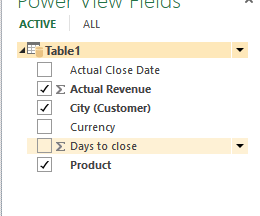
  9. Uncheck/Check only the following fields (Actual revenue, City, Product) PowerViewSettingsBarChart
  10. Select Column Chart
  11. Select Map (in a demo I like to show this view as the column chart first and then show how it turns into a map

For the scatter chart:

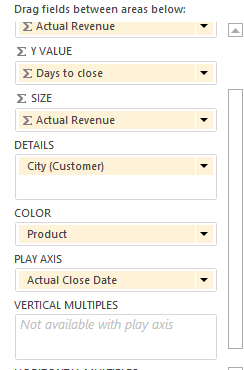
  1. Drag the following fields (actual Revenue, Days to Close, City, Product, Actual Close date ) below the existing chart (this will create a new table)
  2. Select the table and turn it into a scatter chart (under Other Chart on the Ribbon) and set the chart as follows

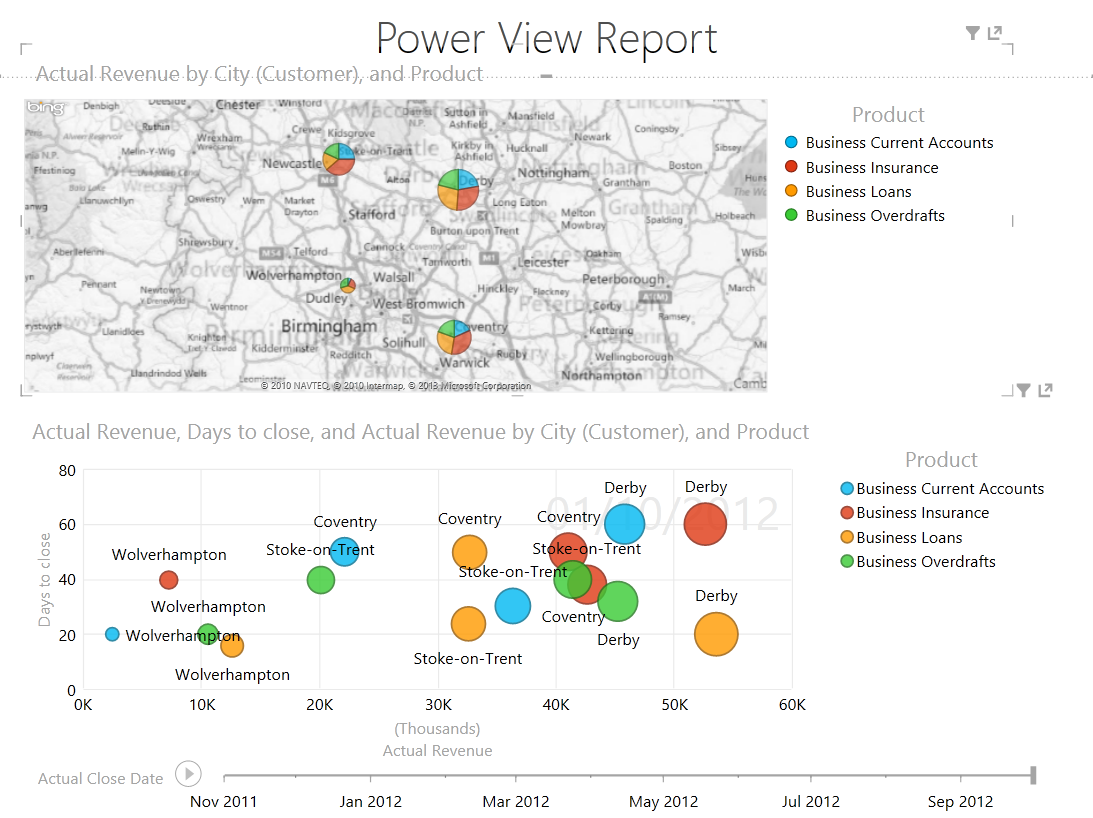
PowerViewSettingsScatterChartSo you should end up that looks like this:

PowerViewExample

This posting is provided “AS IS” with no warranties, and confers no rights.

Next week on Mark Margolis’s Blog: XRM for Financial Services

Charts and Visualisations for Microsoft Dynamics CRM 2011

I am a strong believer that the user interface and user experience of any application has to be at the top of any requirements list and is a major factor in any successful CRM project or product. People are visual and from a demo perspective it is not the complex workflow that you built that they are going to remember it’s the pretty chart that you showed at the end.

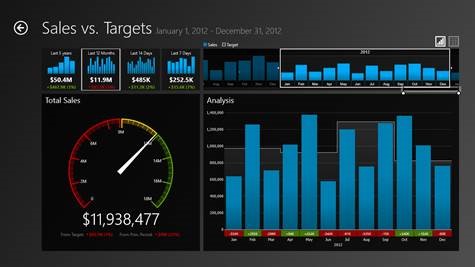
The out of the box Microsoft Dynamics CRM charting and dashboards are really good, however at the moment I’m very excited about some of the charts and components being delivered by some our partners. I’ve used a number of these tools in the past and my current favourite (from a look and feel perspective) is ComponentArt. Below is a screenshot of their sales dashboard:

componentart

Not only does it look nice but it is fully interactive. The screenshot above is from my surface but they have dashboards and chart components for WPF, Silverlight, HTML5 and .NET). You can download the W8 app and get the above chart and many others from the windows store. Click here to open the store or here to go to their website.

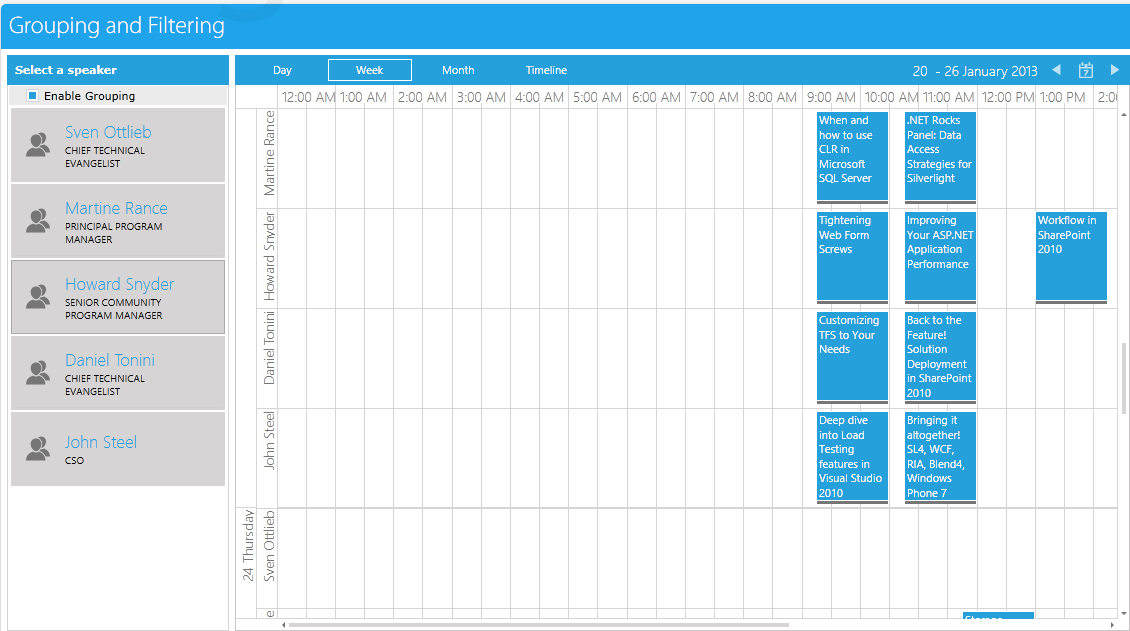
My second favourite chart (did I really just say that!?)  is the Team Calendar chart from Telerik. I’ve used this in one of my products before and it works very well:

tekerik calendar

You can see the above calendar demo in action here. By the way they call this Schedule View not Calendar).  Tekerik have chart components for W8 WPF, Silverlight, HTML5 and .NET). Telerik also have a great Windows 8 application prototyping tool (AppMock)but that is for another post.

UI Chart and components worth a look are:

Do you have any recommendations? Have you built something using the above tools or something similar? I’d love to know if you have.

This posting is provided “AS IS” with no warranties, and confers no rights.

Next week on Mark Margolis’s Blog: Power View & Microsoft Dynamics CRM 2011