Office 365 and Microsoft CRM Email Router Pemissions (PowerShell)

This article describes how to set up Office 365 and the CRM Email Router. There are two excellent articles that cover the basics, you can see those here and here. Once you have set up the basic configuration take a look at how you can then easily use a single administrative user account to process the mailboxes.

When I set-up demo’s I like to be able to send and receive emails and queues in/from CRM. Typically I have 4 or 5 queues set up, each with a with a different email account e.g:

  • Compliance@
  • Legal@
  • InvestorRelations@
  • and so on

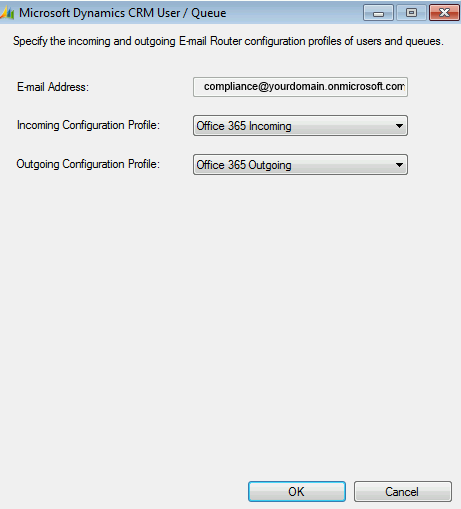
I set up a mailbox for each queue (which is a user account in Office 365) and then I use the Microsoft CRM Email Router to process emails in each of those mailboxes. I create a single administrative account in Office 365 and I then give this administrative account permissions on all the mailboxes that I need to monitor. The only thing left for me then is to create one inbound configuration profile which I can reuse for each mailbox:
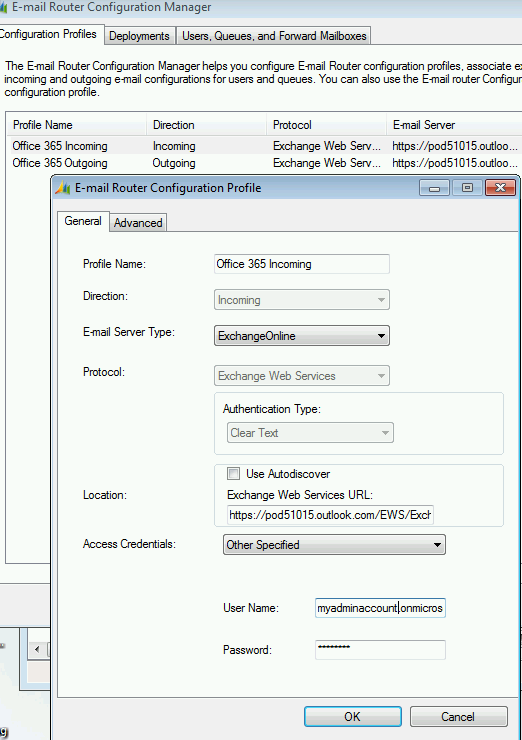
emaillrouterinboundemaillrouterinbound2

In order to give your administrative account permissions on all mailboxes you’ll need to run the following from PowerShell (I do not advise you do this for a production system, see steps later to add permissions on a mailbox by mailbox basis):

Run PowerShell (run as administrator):

1:

Set-ExecutionPolicy RemoteSigned

2.:

$Cred = Get-Credential

3.

$Session = New-PSSession -ConfigurationName Microsoft.Exchange -ConnectionUri https://ps.outlook.com/powershell/ -Credential $Cred -Authentication Basic -AllowRedirection

4.

Import-PSSession $Session

5.

Get-Mailbox | Where {$_.PrimarySMTPAddress -match “yourdomain.onmicrosoft.com“} | Add-MailboxPermission -user youradminaccount@yourdomain.onmicrosoft.com -AccessRights FullAccess -inheritanceType all -AutoMapping $false

Alternatively you can give your administrative user permission on each mailbox as follows:

At step 5 for each mailbox:

Add-MailboxPermission theemailoqueueaccount@yourdomainname.onmicrosoft.com -User admin -AccessRights FullAccess -InheritanceType All

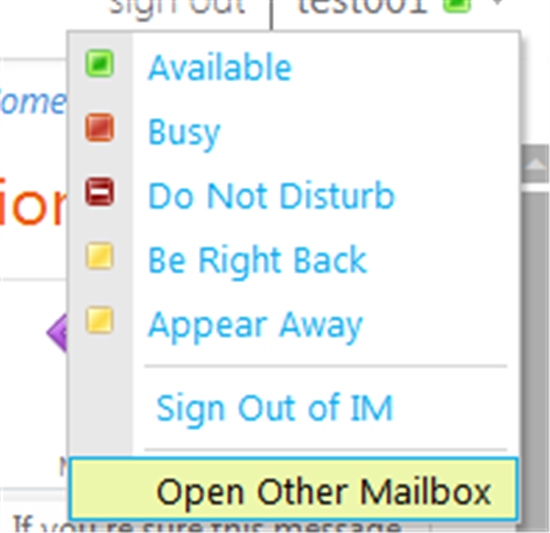
You can then easily test the permission by logging into the Office 365 Outlook web client as the admin account and open the required mailbiox (in Outlook web, click on the presence image and “open other mailbox”
openmailbox

This posting is provided “AS IS” with no warranties, and confers no rights.

Next Week on Mark Margolis’s Blog: Charts and Visualisations for Microsoft Dynamics CRM 2011
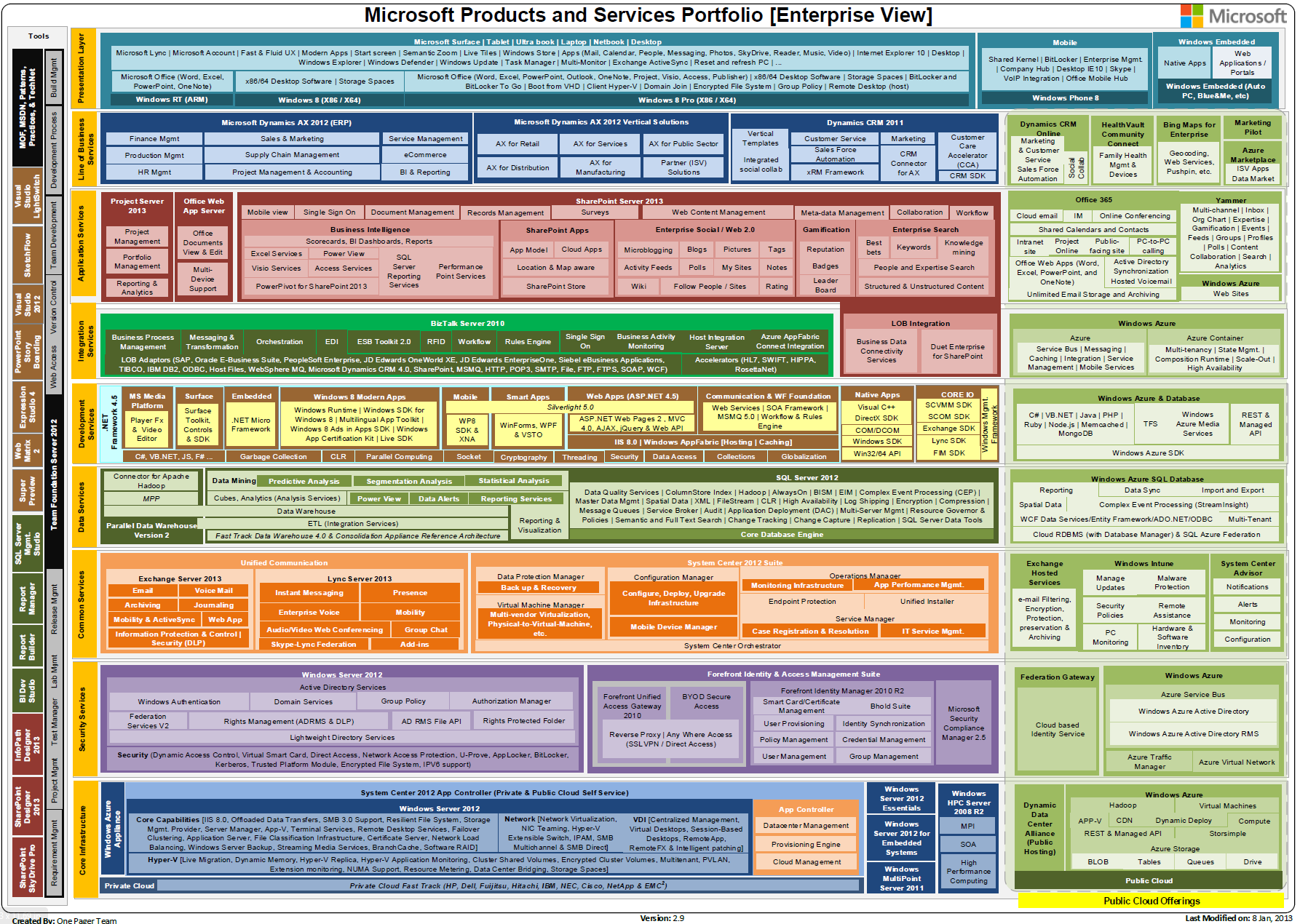
The Microsoft Products and Services Portfolio has just been updated

The Microsoft Products and Services Portfolio has just been updated. I’m always fascinated by the sheer vartiety of products, services and devices that we offer at Microsoft, the image below gives you a quick flavour of most of those.

MSFTProductsandServicesPortfolio

At Microsoft we do what we call EBC’s (Exectutive Briefing Centres) which is essentially an opportunity for a client to visit our offices to learn about the products, services and devices that we offer. The great thing about attending an EBC is that we bring in the best people from each area (SharePoint, Lync, Office, Microsoft CRM etc) to talk about how the benefits of a particular product can meet the needs of the client. I have been to a few of these now and I have always learnt something new; the Products and Services Portfolio illustrates how at Microsoft we really are best placed to meet the requirements of an enterprise. You can find out more about our EBC’s here.

We have also just released a Windows 8 app. You can download it from here. The user guide for the app is here.

This posting is provided “AS IS” with no warranties, and confers no rights.

Update Rollup 12 for Microsoft Dynamics CRM 2011 is available from today

Update Rollup 12 is now available to download for on premise customers. Main features are:

  • Multi browser compatibility (see table below)
  • Activity Feed Enhancements (like/unlike + other enhancements)
  • Other fixes and changes

For details on Update Rollup 12 go here. To download Update Rollup 12 go here.

At time of writing the following browsers are supported:

Platform Internet Explorer Firefox Chrome Safari
Windows XP Version 8 Version 16+ Version 22+ Not Supported
Windows Vista Version 8 and 9 Version 16+ Version 22+ Not Supported
Windows 7 Version 9 and 10 Version 16+ Version 22+ Not Supported
Windows 8 Version 10 Version 16+ Version 22+ Not Supported
Apple OS X 10.7 (Lion) Not Supported Not Supported Not Supported Version 6+
Apple OS X 10.8 (Mountain Lion) Not Supported Not Supported Not Supported Version 6+
Apple iOS (iPad) Not Applicable Not Applicable Not Applicable Supported

CRM 2011 & SharePoint iFrame Error

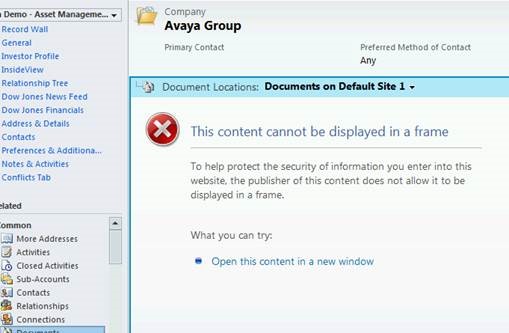
This is not really an error but it is also most definitely not the behaviour you want. If you get the following error message:

This content cannot be displayed in a frame

To help protect the security of information you enter onto this website the publisher of this content does not allow it to be displayed in a frame….

SharePointIframeerror

Fortunately it is relatively easy to solve:

• Delete temporary internet files – Internet Options > General> Delete…
• Add *.live, *.sharepoint.com, *.dynamics.com in trusted sites – Internet Options > Security > Trusted Sites > Sites
• Reset to Custom settings to Medium – Low – Internet Options > Security > Trusted Sites > Custom Level – Reset to Medium – Low
• Enable mixed mode – Internet Options > Security > Trusted Sites > Custom Level
• Enable programs and files in an iframe – Internet Options > Security > Trusted Sites > Custom Level
• Make sure you close and restart Internet Explorer, refreshing is not enough

This posting is provided “AS IS” with no warranties, and confers no rights.

Happy New Year!

So it’s a new year and I could not let another one go by without another blog on the internet, we know that what we all really need right now is yet another blog!  Seriously though, I have been meaning to write this for many years and simply have never got round to it, so after a lot of persuasion I found the time over the recent holiday period to set one up!

Now I have a blog space, my first blog post, its easy from here right? I just need content…

Back Soon.

🙂